
Extract one file on Mac
To extract one file from a ZIP on a Mac, give unzip the archive name and the file's full path inside it. For a 7z or RAR, use the Mac's tar command instead. You can choose a destination and leave the other entries unextracted; Kernir also offers drag-out extraction in its Mac interface.
Find the exact path first
Open Terminal from Applications › Utilities. If the archive is in Downloads, start there and list it:
cd ~/Downloads
unzip -l "Project.zip"
The listing includes filenames and their folders. Suppose the file you need appears as Project/Data/budget.xlsx: copy that whole path, not just budget.xlsx.
For a 7z or RAR, list the contents with the corresponding command:
tar -tf "Project.7z"
tar -tf "Notes.rar"
Use the command matching the archive you have. The Mac's tar reads these formats through libarchive; GNU tar on Linux has different capabilities. None of these listing commands extracts the contents.
Extract one file from a ZIP
Create an empty folder named Selected files inside Downloads using Finder. With Terminal still in Downloads, run:
unzip -n "Project.zip" "Project/Data/budget.xlsx" -d "Selected files"
Replace the archive name and internal path with yours. The -d option chooses the destination. The -n option skips existing files instead of replacing them.
You will find the result at Selected files/Project/Data/budget.xlsx. Extracting one entry still recreates its parent folders. If you already extracted that file and want a fresh copy, choose a new empty destination rather than assuming -n overwrote it.
To keep only the filename and discard the stored folder path, add -j:
unzip -n -j "Project.zip" "Project/Data/budget.xlsx" -d "Selected files"
This creates Selected files/budget.xlsx. Dropping folders can cause name collisions when extracting several files, so use it deliberately.
Extract one file from a 7z or RAR
For 7z, supply the full entry path after the destination:
tar -xvf "Project.7z" -C "Selected files" "Project/Data/budget.xlsx"
For a RAR containing Documents/notes.txt, use:
tar -xvf "Notes.rar" -C "Selected files" "Documents/notes.txt"
These commands recreate the entry's folders. Unlike the ZIP examples with -n, they can overwrite existing paths, so use an empty destination.
To remove two parent folders from the 7z example, add --strip-components 2:
tar -xvf "Project.7z" -C "Selected files" --strip-components 2 "Project/Data/budget.xlsx"
The result is Selected files/budget.xlsx. The number depends on the path: Project/Data/ has two components. Do not copy that number blindly for an entry stored at a different depth.
If the command finds no file
Check the path against the listing. Capital letters and folder names matter. Put paths with spaces in quotes; otherwise the shell splits them into separate arguments. Avoid wildcard characters when you want one ordinary filename, because they can select multiple entries.
A successful listing does not guarantee that an encrypted file can be extracted. The 7z and RAR examples here are for unencrypted content. Kernir supports password-protected ZIP, and 7z AES-256, including encrypted headers. Encrypted RAR content is not supported.
Extracting one file avoids writing all the others to disk. It does not promise an instant operation: with some compression layouts, the reader still has to process other compressed data to reach your selection.
Drag one file out with Kernir
Kernir provides a file browser for archives, so you do not need to type the stored paths.
The Mac download is coming soon. You can view the source and build instructions on GitHub. The steps below describe the current app workflow.
With Kernir installed:
- Open the archive using File › Open… (⌘O).
- Use Find (⌘F) to search for the filename, or browse its folders.
- Drag the file into a Finder window or onto the desktop.
Dragging out a single file gives it its own filename at the destination. Alternatively, select entries and choose File › Extract… (⌘E). That operation preserves the paths inside the archive. Check your selection first: Extract with nothing selected extracts everything.
To inspect an archive before opening it, see Quick Look for archives. To change what remains inside, see editing a ZIP without manually unpacking it.
On iPhone and iPad
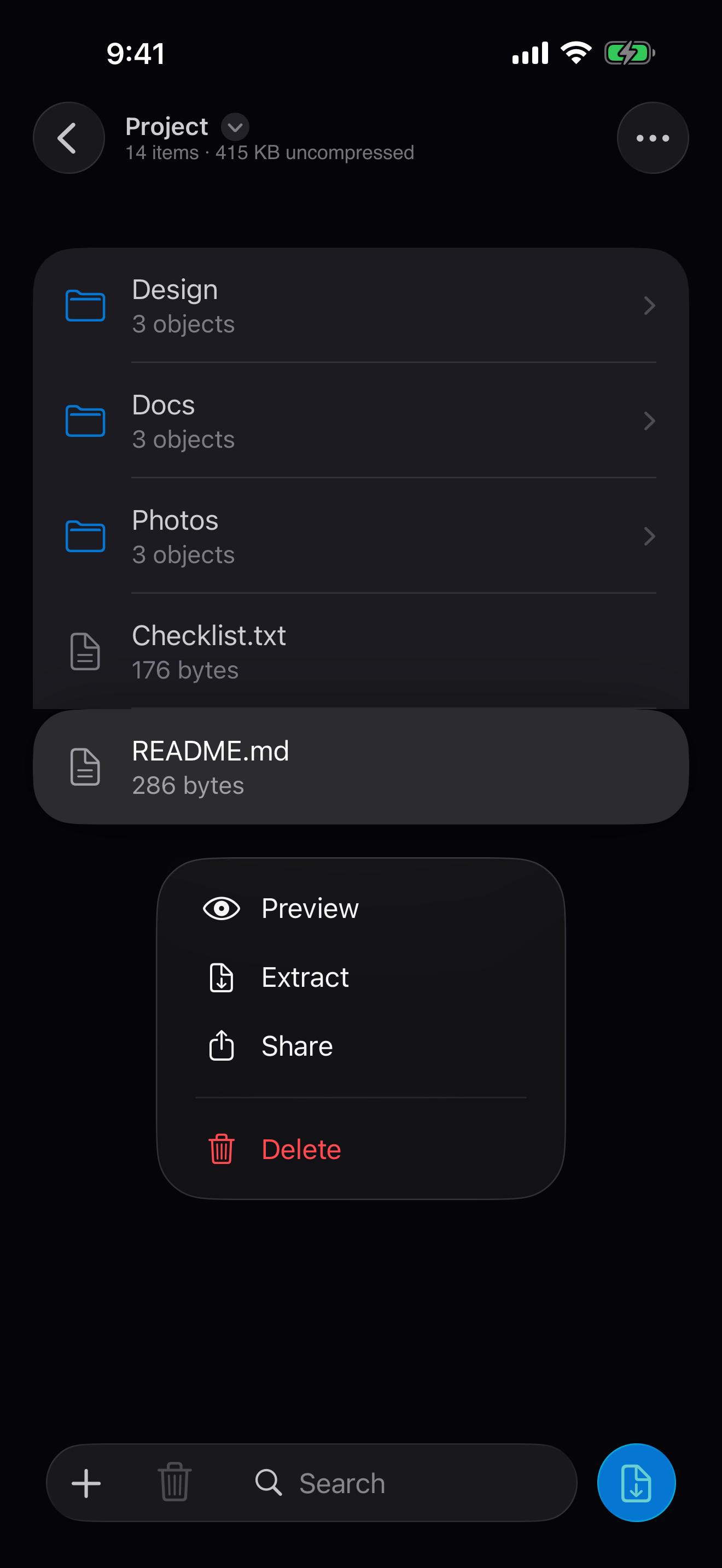
In Kernir on iPhone or iPad, touch and hold one entry and choose Extract, then choose a destination folder. Share sends that selected entry to another app. The App Store release is being prepared; see the mobile extraction guide.
Kernir.dmg, signed and notarized. Requires macOS 14 or later.
Related guides
Built-in-tool examples are based on the project’s recorded macOS 26.2 checks. App steps were checked against source code. Updated .
Current encryption support was rechecked against source code on . Mobile screenshots, where shown, were supplied by the project owner.
