
iPhone and iPad archives
For an ordinary ZIP, tap it in Apple's Files app to extract its contents. To browse an archive first, preview one document or extract selected files, open it in Kernir. Kernir reads ZIP, 7z and unencrypted RAR, among other formats.
The App Store release is being prepared. The screenshots below show the current iPhone and iPad app. Kernir requires iOS 17 or iPadOS 17 or later; the pictured interface was captured on version 26.5, so controls can look different on older systems. The source repository includes build instructions.
Start with Files for ZIP
In Files, find the ZIP and tap it. Open the resulting folder to reach the extracted files. Apple's ZIP instructions for iPhone and iPad cover this built-in workflow, as well as making a ZIP with Compress.
That is enough when you want the whole ZIP expanded. For browsing in Kernir, launch Kernir and select the archive in its document browser. You can also use the Files share sheet and choose Kernir when it is offered. If the file is in cloud storage, let it finish downloading first.
Browse the archive
Open folders to see their contents. Search helps locate an entry without manually stepping through each folder. Listing an archive does not extract all of its files into a destination folder.
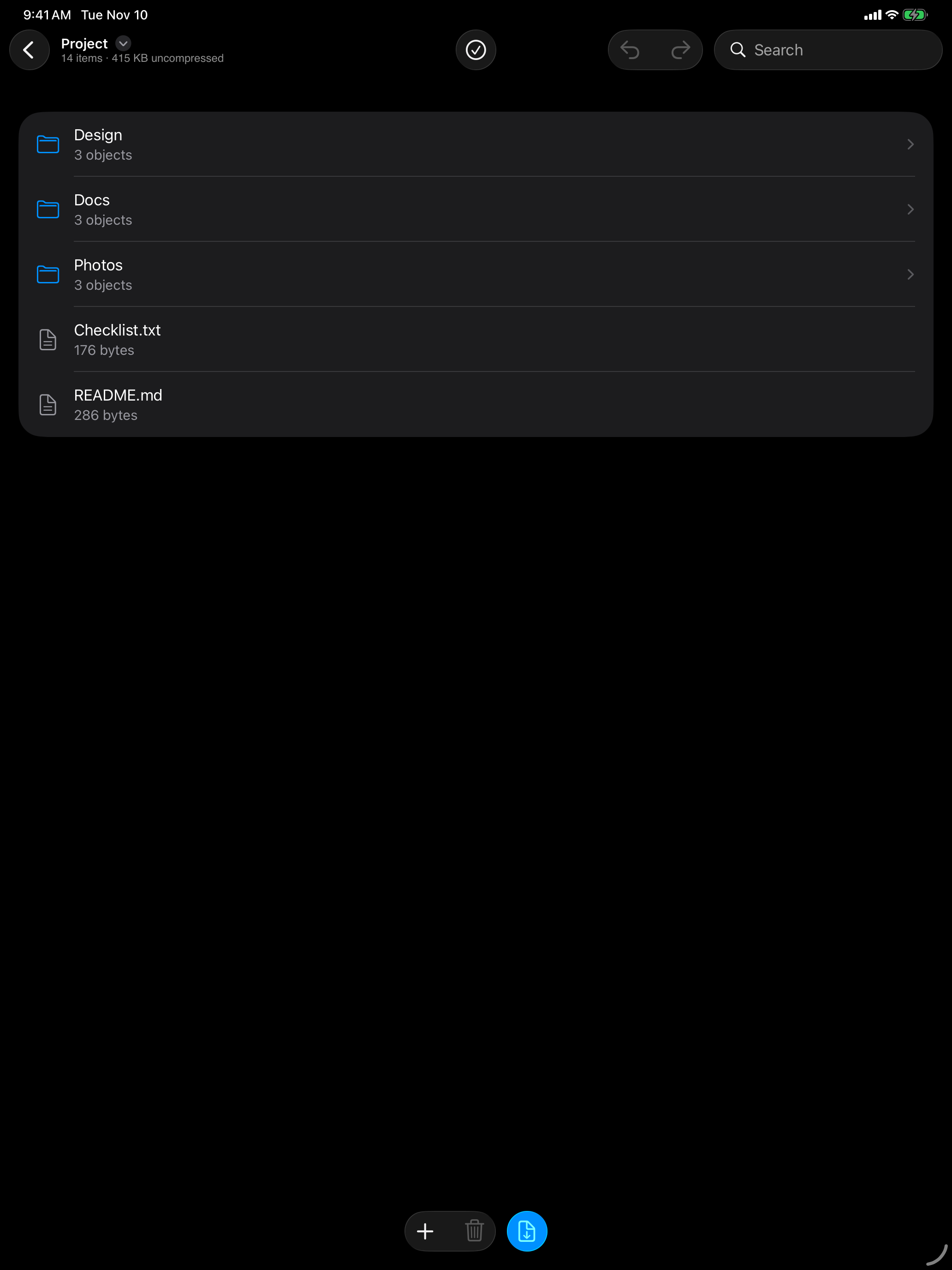
The example above is the project's demonstration ZIP. The test archive library provides separate, smaller text-only files if you want to check listing, folder names or password support with known contents.
Preview a file
Tap a file to preview it, or touch and hold it and choose Preview. Kernir prepares the selected entry for the system previewer. The result depends on whether that previewer supports the document type.
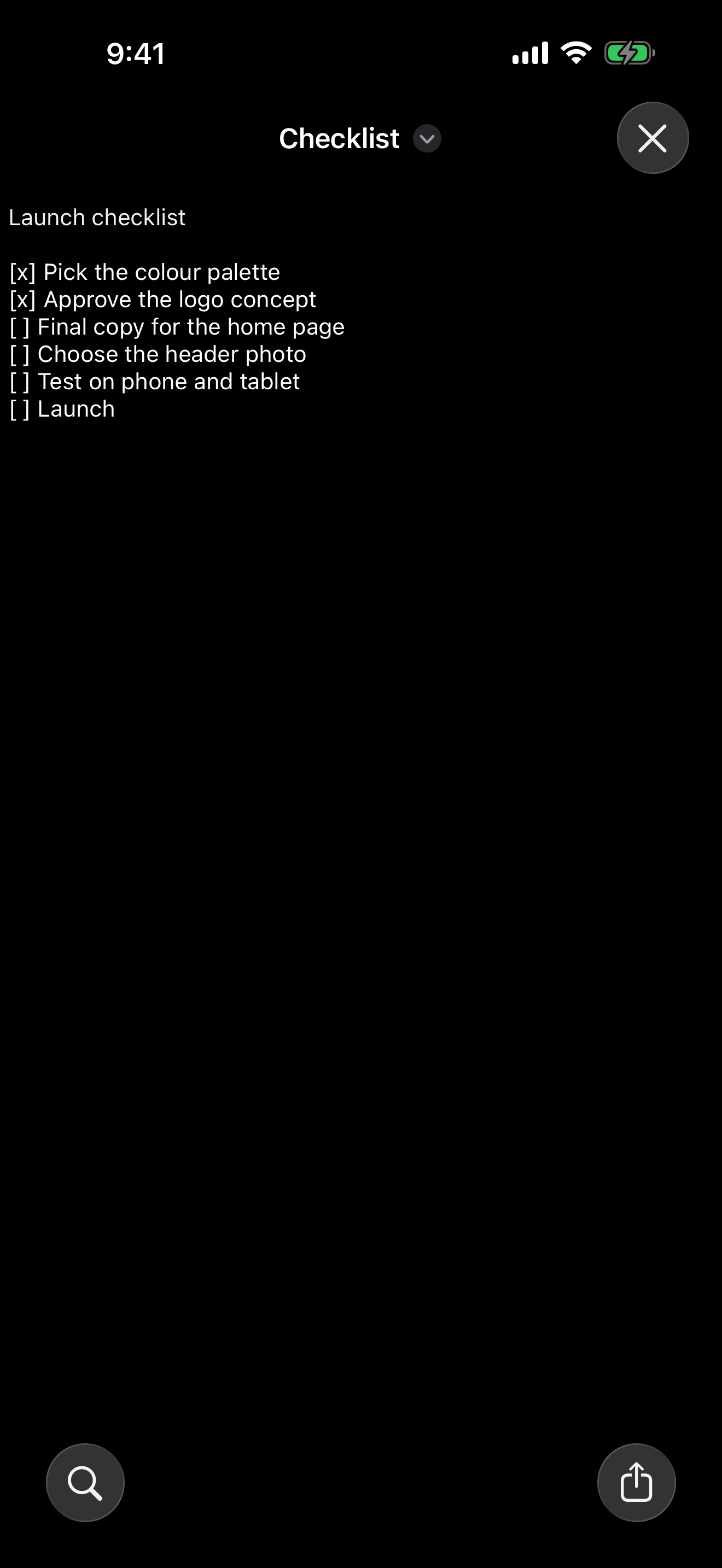
Close the preview to return to the archive. This is an in-app file preview on iPhone; the Mac's Space-bar archive listing is a separate feature described in the Quick Look guide.
Extract a selection
To take out one entry, touch and hold its row and choose Extract, then choose a destination folder. The same menu offers Share when you want to pass the selected file to another app.
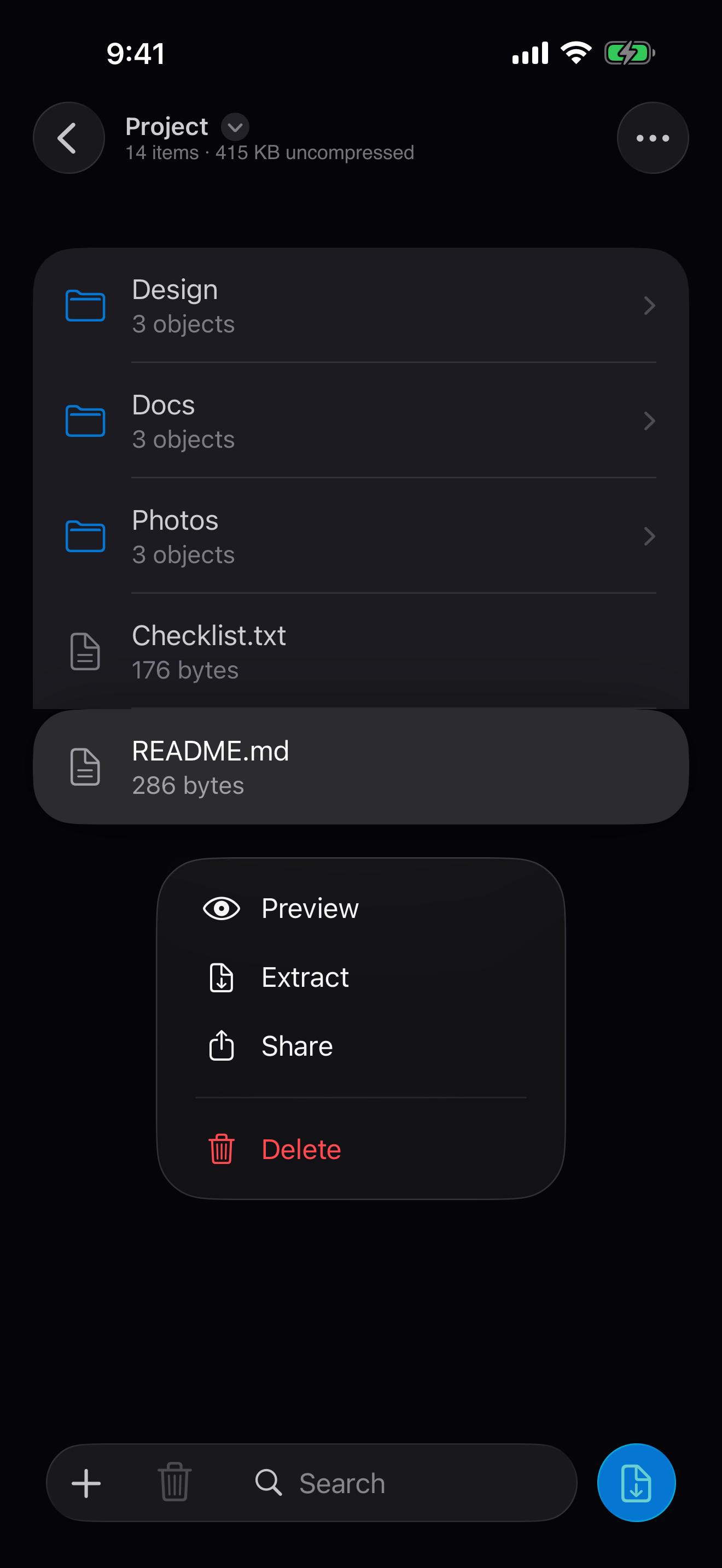
For several entries, switch to Select, choose the rows and tap Extract. Check the selection before continuing: outside selection mode, the toolbar's Extract action extracts the archive rather than just one row. You can use a fresh destination folder to keep the result separate from earlier attempts.
Extraction copies files out of the archive. It does not remove them from it. The single-file extraction guide covers the corresponding Mac and Terminal workflows.
Add, delete and save
For a writable archive, use the plus menu to choose files or photos to add. To remove an entry, touch and hold it and choose Delete, or select entries and use the delete control. Undo lets you reverse changes before committing them.
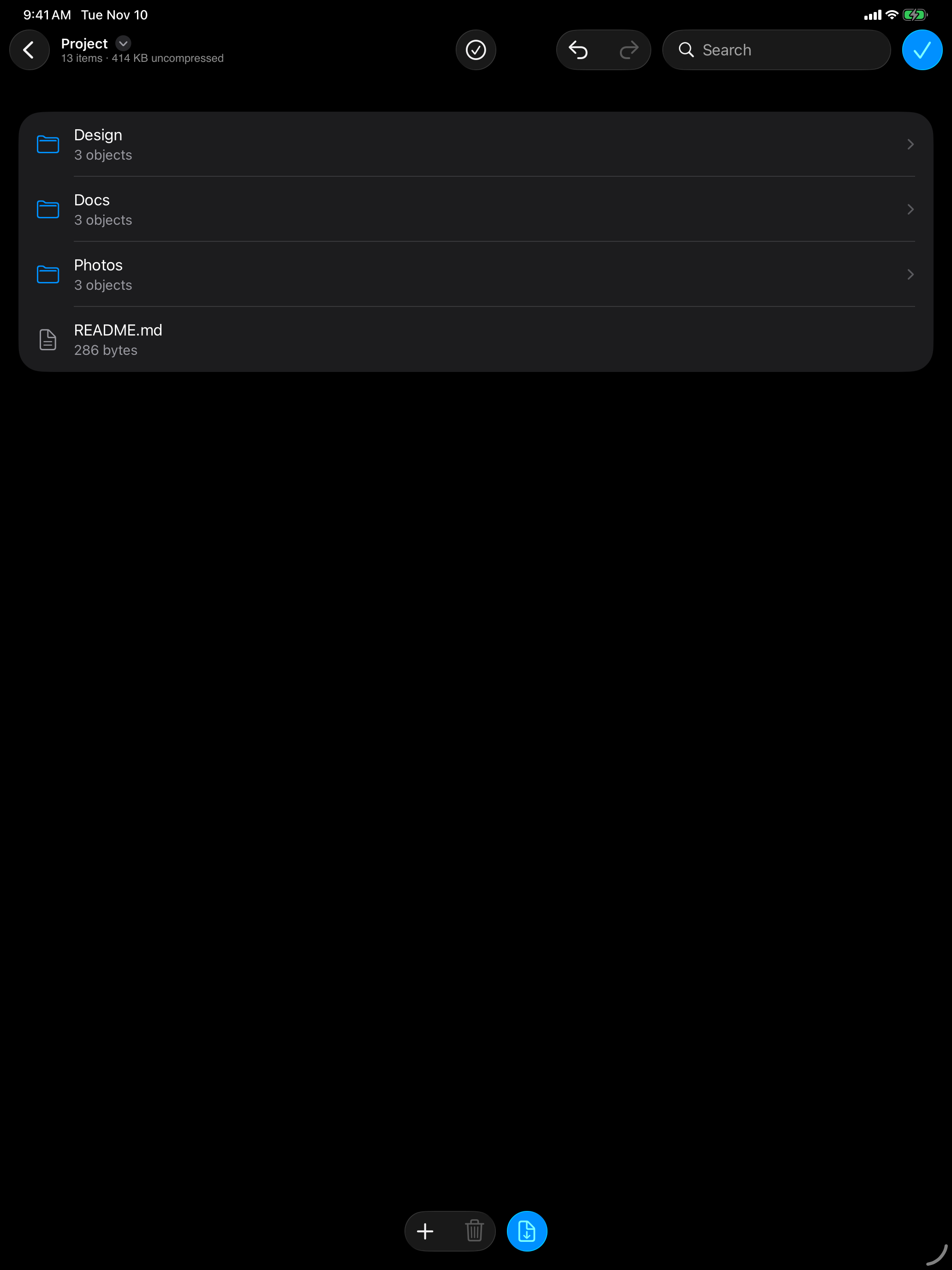
Tap Save when you want to write the changed archive. In the pictured iPad interface, Save is the blue checkmark at the top right. Keep the archive open until saving finishes. For a document opened in place, saving writes back to that document; preserve a separate copy when you want to keep the original contents.
Kernir writes ZIP, 7z, TAR, TAR.GZ, TAR.BZ2 and TAR.XZ. RAR and the other read-only formats can be browsed and extracted; they cannot be edited in place. Read the Mac ZIP editing guide for desktop steps.
Open a protected archive
Enter the password when Kernir prompts for it, then tap Open. The prompt also offers Remember in Keychain. If you are testing a library download, its public password is kernir; a sender's private archive has its own password.
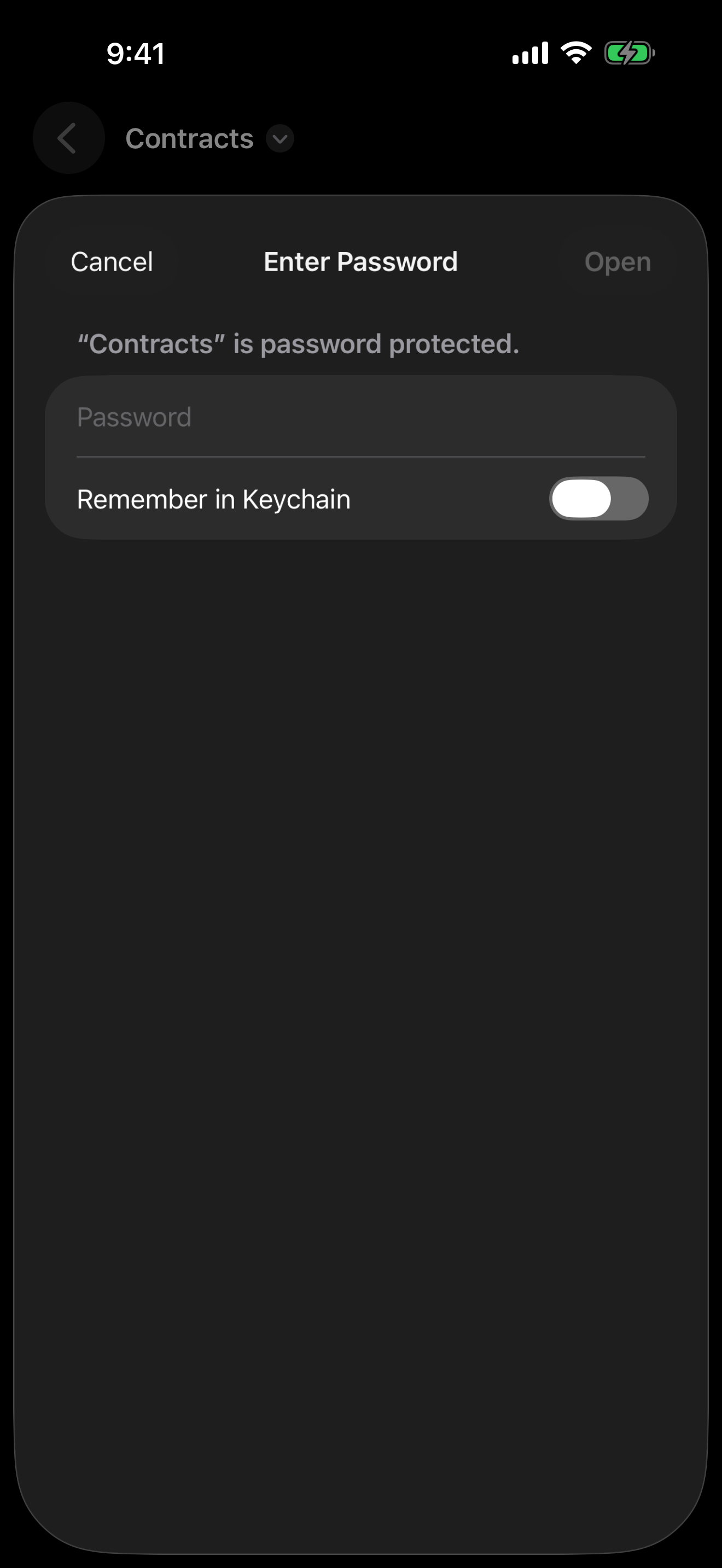
Current Kernir supports ZipCrypto and WinZip-compatible AES ZIPs, and 7z AES-256 including encrypted headers. Encrypted RAR and PKWARE Strong Encryption ZIPs remain unsupported. A password prompt is not a password-recovery tool: ask the sender if you do not know the password.
If a file still fails to open, check the complete download, the exact archive format and the full error message. A successful listing does not prove that every compressed entry can be extracted. The ZIP troubleshooting guide explains those distinctions; its Terminal commands apply to Mac.
Related guides
Screenshots were supplied by the project owner with iOS/iPadOS 26.5 simulator test logs. Workflows and current format support were checked against Kernir source code; no new device session was run for this article. Updated .
