
See inside a ZIP, 7z or RAR without unpacking it
On a Mac you can see what’s inside a ZIP, 7z or RAR without unpacking it in two ways. Run one command in Terminal, or select the archive in Finder and press Space once an app with a Quick Look extension for archives is installed. macOS 26 has no archive preview of its own, so Space alone doesn’t list what’s inside.
Can Quick Look show what’s in a ZIP by itself?
No. Quick Look in macOS 26 has no built-in preview for archives. Press Space on a ZIP and it won’t list the files in it.
Archive Utility, the Mac’s built-in tool, can only unpack a whole archive. It can’t show you what’s inside first. On macOS 26.2 it unpacks ZIP and 7z, but RAR isn’t one of its file types.
How do I list what’s in a ZIP with Terminal?
Terminal comes with every Mac, in Applications › Utilities. Open it, go to the folder that holds the archive (for example with cd ~/Downloads), and run unzip -l with the archive’s name:
$ unzip -l Photos.zip
Archive:  Photos.zip
  Length      Date    Time    Name
---------  ---------- -----   ----
        0  11-09-2026 15:33   Photos/
        0  11-09-2026 15:33   Photos/Holiday/
  3100000  11-09-2026 15:33   Photos/Holiday/IMG_0413.jpg
  2400000  11-09-2026 15:33   Photos/Holiday/IMG_0412.jpg
  2750000  11-09-2026 15:33   Photos/Holiday/IMG_0419.jpg
      440  11-09-2026 15:33   Photos/notes.txt
---------                     -------
  8250440                     6 files
Each line is one file or folder, with its size in bytes and the date it was last changed. Nothing is unpacked. If the name has spaces, put it in quotes: unzip -l "Holiday photos.zip".
How do I list what’s in a 7z or RAR with Terminal?
unzip only reads ZIP. For 7z and RAR, use tar, which also comes with macOS. Its tar is built on libarchive and lists ZIP, 7z and RAR archives:
$ tar -tf Project.7z
Project/README.txt
Project/report.pdf
Project/Data/budget.xlsx
Project/Data/survey results.csv
Project/Data/
Project/
The same command works for a RAR, for example tar -tf Scans.rar. Terminal shows names as plain text, so you can’t look at a file inside this way.
Why did my Quick Look plugin stop working?
Older apps added archive previews to Quick Look with .qlgenerator plugins. Those plugins stopped working in macOS 15 Sequoia. A preview that worked on an older Mac can show nothing on Sequoia or on macOS 26 Tahoe.
Quick Look previews now come from extensions that are part of an app. To get archive previews back, install an app that includes a Quick Look extension for archives.
How do I preview archives with Kernir?
Kernir is a free, open-source archive viewer and editor for Mac, iPhone and iPad. On the Mac it adds a Quick Look extension for archives. There’s no account, no subscription and no tracking.
- Download Kernir.dmg, move Kernir to your Applications folder and open it once. It needs macOS 14 or later.
- In Finder, select a ZIP, 7z or RAR.
- Press Space.
Quick Look lists files and folders in the archive, with sizes, without unpacking anything or opening an app. A line at the top gives the format, the number of items and the total size. Press Space again to close it. The preview works for every format Kernir reads, including TAR, GZ, BZ2, XZ, ISO and CAB. For a password-protected archive, it says so instead.
Need just one file? See how to extract a single file with Terminal or Kernir. You can also add or remove files in the archive and save it back.
Kernir.dmg, signed and notarized. Requires macOS 14 or later.
What if a different app’s preview appears?
If Space shows another app’s preview, or still shows no file list, check which Quick Look extensions are turned on. Open System Settings › General › Login Items & Extensions. Under Extensions, choose By Category, click Quick Look, and turn on Kernir. Each app’s extension has one switch for all file types, so if two apps preview archives, turn the other one off.
Then select the archive in Finder and press Space again.
What about iPhone and iPad?
Quick Look with Space is a Mac feature, and this guide is about the Mac. Kernir for iPhone and iPad is on its way to the App Store: open a ZIP, 7z or RAR from the Files app or the Share sheet to see what’s inside and take files out. It needs iOS 17 or iPadOS 17 or later. See Kernir on iPhone and iPad.
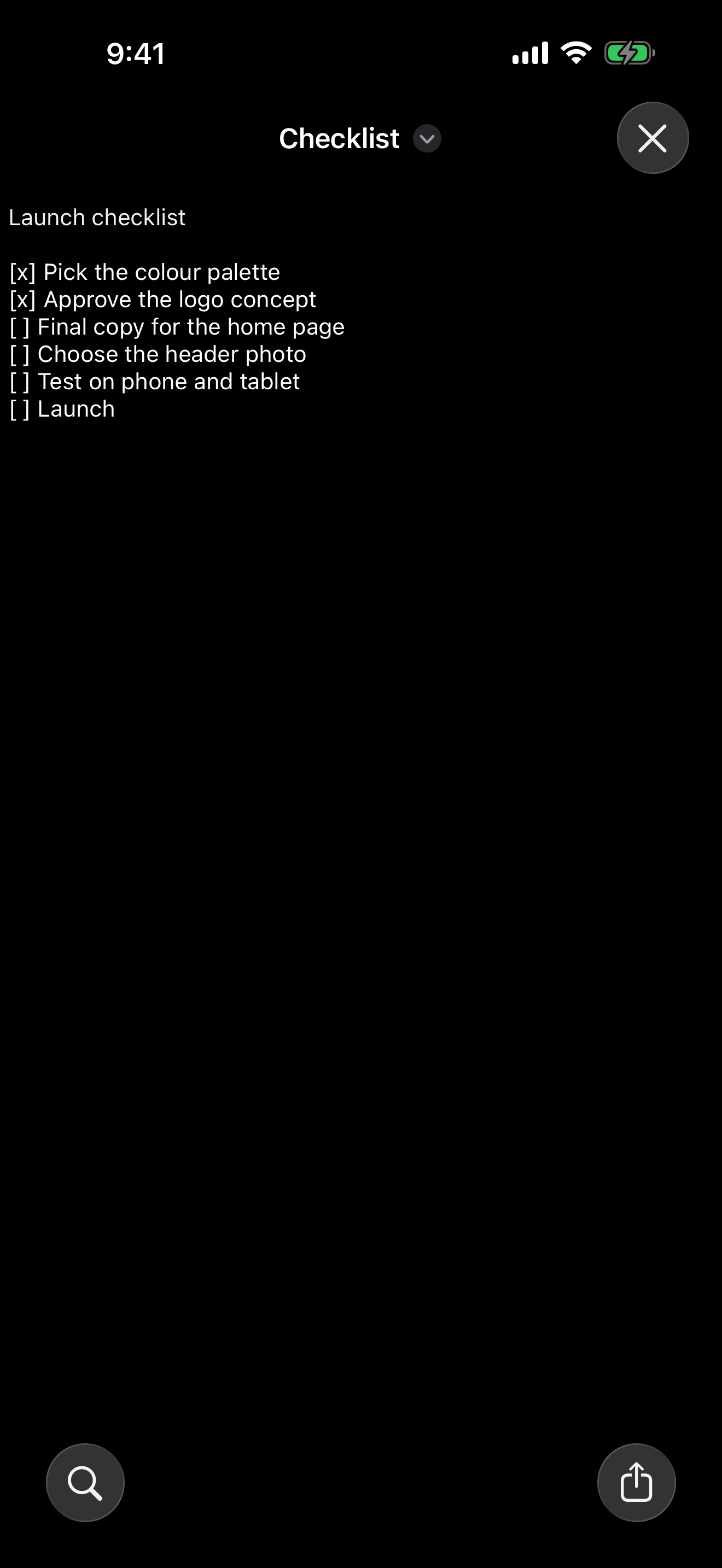
Inside the mobile app, tap a file to preview its contents, as shown below. The iPhone and iPad guide explains browsing, extracting and editing with touch controls.
Related
Tested on macOS 26.2. Updated .
Current encryption support was rechecked against source code on . Mobile screenshots, where shown, were supplied by the project owner.
