
Add or remove a file in a ZIP on Mac without unzipping
To remove a file from a ZIP on a Mac without unzipping it, run zip -d archive.zip "folder/file" in Terminal. To add a file or replace one that changed, run zip -u archive.zip file. Both commands change the ZIP directly and have no undo; the free Kernir app does the same with drag and drop and ⌘Z, for 7z and TAR too.
Can Archive Utility change a ZIP?
No. Archive Utility, the Mac’s built-in tool, can only unpack a whole archive. It can’t show you what’s inside first or change one file. Without another app, that means unpacking everything, changing the folder and making a new ZIP. The zip command in Terminal skips those steps.
Step 1: Find the path inside the ZIP
Open Terminal (Applications › Utilities) and go to the folder that holds the archive, for example with cd ~/Downloads. The zip commands use paths as they’re stored inside the archive, not where a file is on your Mac. List them first:
$ unzip -l Project.zip
Archive:  Project.zip
  Length      Date    Time    Name
---------  ---------- -----   ----
        0  11-09-2026 15:34   Project/
       14  11-09-2026 15:34   Project/README.txt
        0  11-09-2026 15:34   Project/Data/
    52000  11-09-2026 15:34   Project/Data/budget.xlsx
    20480  11-09-2026 15:34   Project/Data/survey results.csv
   184320  11-09-2026 15:34   Project/report.pdf
---------                     -------
   256814                     6 files
There’s no undo, so make a copy before you change anything:
$ cp Project.zip "Project copy.zip"Step 2: Remove a file with zip -d
Give zip -d the archive and the full path from the list. Put the path in quotes if it has spaces:
$ zip -d Project.zip "Project/Data/survey results.csv"
deleting: Project/Data/survey results.csv
The path must match exactly. The file name alone isn’t enough, and the ZIP stays as it was:
$ zip -d Project.zip "survey results.csv"
	zip warning: name not matched: survey results.csv

zip error: Nothing to do! (Project.zip)
Step 3: Add or replace files with zip -u
zip -u adds files that aren’t in the ZIP yet and replaces files that have changed since they were added. Files that haven’t changed are skipped. Run it from the folder that contains Project, so the paths you type match the paths inside the archive. Here report.pdf was edited, summary.txt is new, and README.txt is unchanged:
$ zip -u Project.zip Project/report.pdf Project/summary.txt Project/README.txt
updating: Project/report.pdf (deflated 0%)
  adding: Project/summary.txt (stored 0%)
Check the result with unzip -l again:
$ unzip -l Project.zip
Archive:  Project.zip
  Length      Date    Time    Name
---------  ---------- -----   ----
        0  11-09-2026 15:34   Project/
       14  11-09-2026 15:34   Project/README.txt
        0  11-09-2026 15:34   Project/Data/
    52000  11-09-2026 15:34   Project/Data/budget.xlsx
   191488  11-09-2026 15:35   Project/report.pdf
       21  11-09-2026 15:35   Project/summary.txt
---------                     -------
   243523                     6 files
What Terminal can’t do
ZIP only.
zipdoesn’t change 7z or RAR archives. On a 7z it stops with an error (output shortened):$ zip -d Project.7z "Project/README.txt" zip error: Zip file structure invalid (Project.7z)- No undo. Once a file is deleted from the ZIP, it’s gone unless you kept a copy.
- Paths are the ones inside the archive. Run
zip -ufrom the wrong folder and it adds a second file instead of replacing the first. From inside theProjectfolder,zip -u ../Project.zip report.pdfprintedadding: report.pdfand left the ZIP with bothProject/report.pdfand a newreport.pdfat the top level.
How do I do it in Kernir?
Kernir is a free, open-source archive viewer and editor for Mac, iPhone and iPad. It has no account, no subscription and no tracking.
- Open the archive in Kernir. To make Kernir open archives on double-click, select one in Finder, choose File › Get Info, set “Open with” to Kernir and click Change All.
- To add files, drop them onto the window or onto a folder in it.
- To remove a file, select it and press Delete, or choose Edit › Delete.
- Press ⌘S to save.
Saving repacks the archive and replaces the original only once the new one is fully written. It behaves like any Mac document: ⌘Z undoes, and closing the window asks before throwing changes away. The same steps work for 7z, TAR, TAR.GZ, TAR.BZ2 and TAR.XZ.
Password-protected ZIP and 7z AES-256 archives open after you enter the password. Saving in the same format keeps password protection. Encrypted RAR archives aren’t supported yet.
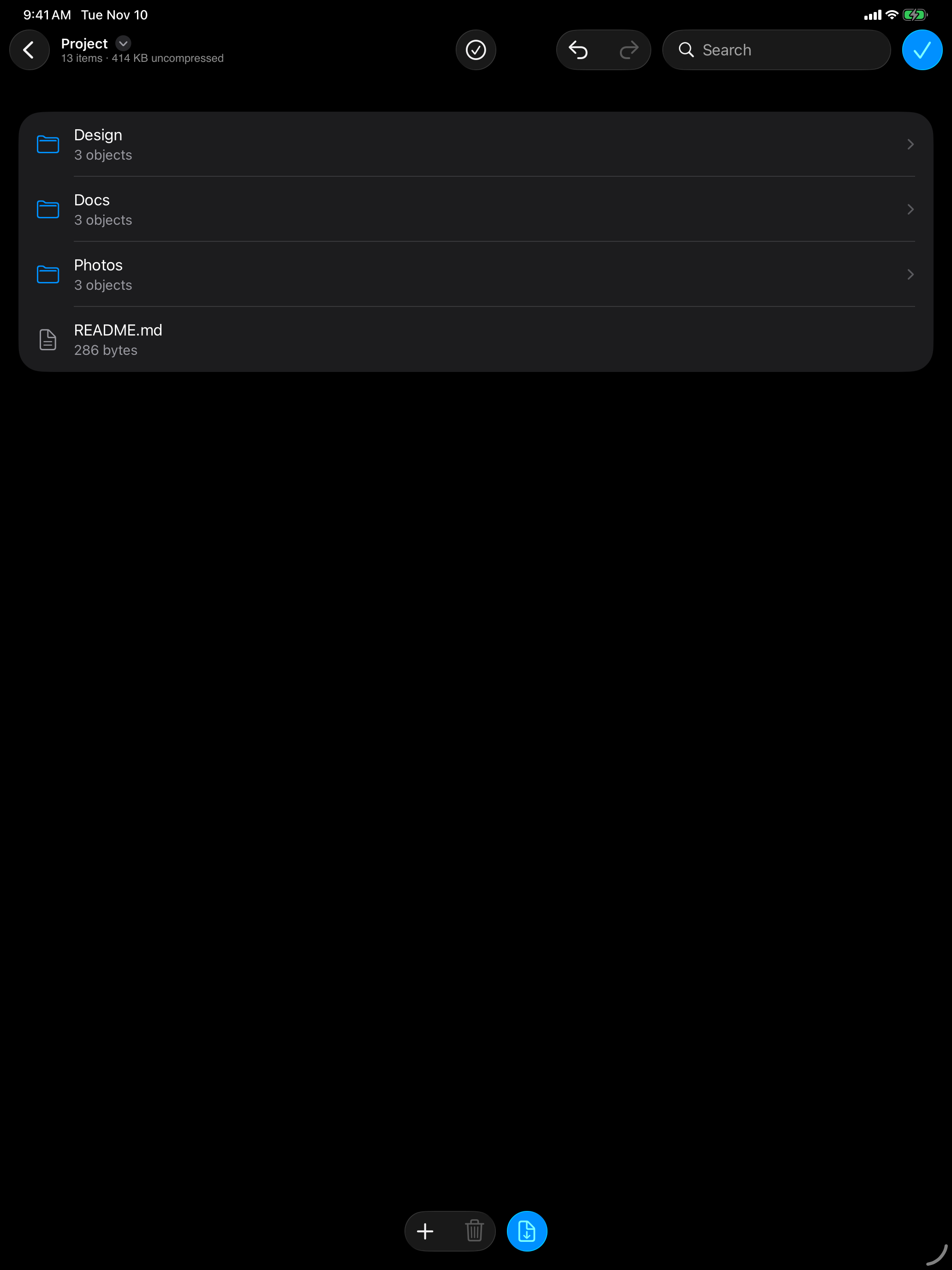
Edit on iPad
The iPad interface uses touch controls for the same archive-editing task. Add files with the plus menu, or touch and hold an entry and choose Delete. The pictured change has not yet been saved: Undo is available, and the blue checkmark at the top right is Save. The App Store release is being prepared; see editing on iPhone and iPad.
Kernir.dmg, signed and notarized. Requires macOS 14 or later.
Can I change a RAR?
No. Kernir opens RAR archives but can’t change or create them, because the format is closed. Terminal’s zip can’t either. To change what’s in a RAR, open it in Kernir, choose File › Save As… (⇧⌘S) and save it as a ZIP or 7z instead.
If you only need a copy of a document, you can extract one file without editing the archive.
Related
Tested on macOS 26.2. Updated .
Current encryption support was rechecked against source code on . Mobile screenshots, where shown, were supplied by the project owner.
