
Open a ZIP with a password
To open a password-protected ZIP on a Mac, you need both its password and an application that supports the encryption used in that ZIP. Try opening it normally first. If that fails, the problem may be unsupported encryption or a damaged download, rather than an incorrect password.
Start with the file and password
Make sure the download has finished and that you have the password for this particular archive. Check capital letters, keyboard layout and accidentally copied spaces. Ask the sender which application created it if the same password keeps failing.
Do not change .zip to another extension to try to decrypt it. That does not change the encryption. Likewise, moving it into a new ZIP only wraps the encrypted file in another archive.
Double-click the ZIP in Finder. If the application that opens asks for a password, enter it. If it reports an unsupported format or method, move to a reader that supports that encryption rather than repeatedly submitting the same password.
Try Terminal for a compatible ZIP
The Mac includes unzip. It can open traditional password-protected ZIPs, but should not be assumed to support every encryption scheme stored in a ZIP.
Create an empty folder named Private output in Downloads. Open Terminal from Applications › Utilities and run:
cd ~/Downloads
unzip -n "Private.zip" -d "Private output"
Replace the filename with yours. When the tool requests the password, type it at the prompt. The -d option selects the destination; -n skips existing files instead of replacing them. Choose a fresh destination if you need a new extracted copy.
Keep the password out of the command itself. A password passed as a command-line argument can end up in shell history or process information. The interactive prompt avoids putting it in the command you save or share.
If unzip reports an unsupported method, use a compatible application. An error from one reader does not establish that the archive is corrupt. The Info-ZIP FAQ documents that extraction can depend on the methods supported by the tool.
Open it in Kernir
Kernir's current ZIP support includes ZipCrypto and WinZip-compatible AES encryption. PKWARE Strong Encryption is a different ZIP scheme and is not supported. Kernir also supports 7z AES-256, including encrypted headers. Encrypted RAR contents remain unsupported.
The Mac download is coming soon. You can view the source and build instructions on GitHub. These steps describe the current app workflow.
- Choose File › Open… (⌘O) and select the ZIP.
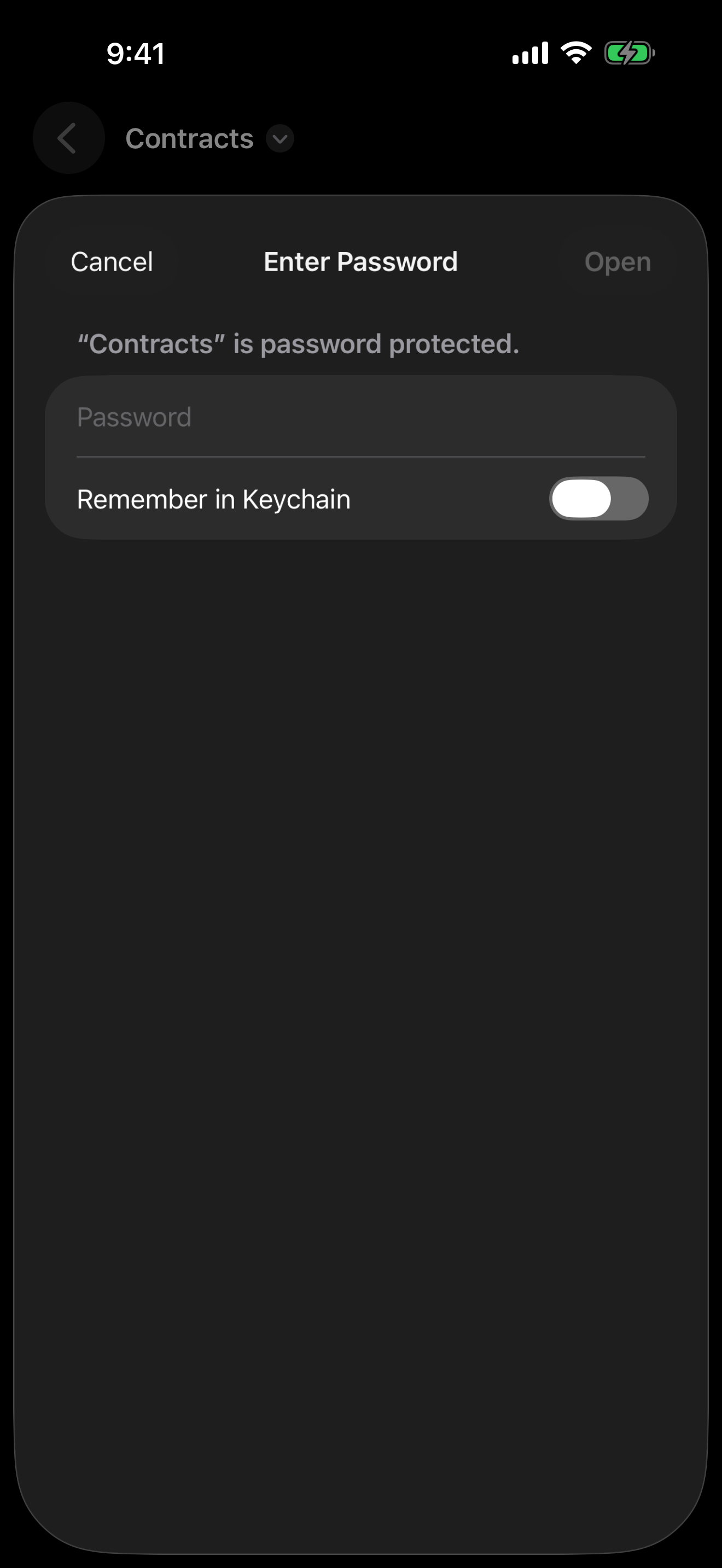
- Enter its password when asked. Kernir offers a Remember in Keychain option if you want the password retained on your Mac.
- Browse the contents, then select files and choose File › Extract… (⌘E), or drag a file into Finder.
Check the destination after extraction. Seeing the names of files inside a ZIP is not the same as successfully decrypting their contents: some archives expose a list of names before a password is supplied.
Understand the failure
| What happens | What to try next |
|---|---|
| A reader reports an incorrect password | Recheck the password and keyboard layout; confirm it with the sender |
| The reader reports unsupported encryption or compression | Choose a reader supporting that specific scheme, or ask for a compatible archive |
| The download is incomplete, or an integrity check fails | Download it again or ask the sender to recreate it |
| Extraction succeeds but the document will not open | Check the extracted document and the app used to open it; this is a separate step from ZIP extraction |
Avoid treating every error as a password error. A damaged file can fail even with the right password, and a password cannot add missing format support to a reader.
After extraction
The password protects the archive's encrypted contents. The extracted files are ordinary files in the destination folder; the ZIP password does not automatically protect those separate copies.
If you edit the ZIP or save it in another format, check the save panel's encryption settings. Not every output format supports the same protection. Kernir writes 7z with AES-256 and encrypted filenames, while TAR output has no encryption. Verify the saved archive before relying on its password protection.
If you do not have the password, ask the sender for it or for an accessible copy. Kernir is an archive reader and editor, not a password recovery tool.
On iPhone and iPad
On iPhone and iPad, Kernir asks for the password and offers an optional Remember in Keychain switch. Enter the password and tap Open. The App Store release is being prepared; see the iPhone and iPad guide.
Try the ZipCrypto and AES ZIP samples with the public password kernir. To make your own protected archive, see creating a ZIP with a password.
Kernir.dmg, signed and notarized. Requires macOS 14 or later.
Related guides
App steps were checked against current source code. Updated .
Current encryption support was rechecked against source code on . Mobile screenshots, where shown, were supplied by the project owner.
