
Open 7z files on Mac
To open an unencrypted 7z on a Mac, try double-clicking it with Archive Utility. That worked in the project's macOS 26.2 check. For more control, Terminal can list the contents, extract individual files and create a new 7z. Kernir also provides a window for browsing and editing these archives.
Open with Archive Utility
If you want every file, Archive Utility may be all you need. Control-click the archive in Finder and choose Open With › Archive Utility if another app is currently assigned to .7z files.
The built-in tool unpacks the contents; it does not give you a file browser to inspect the archive first. The macOS 26.2 result does not establish support on every older or newer macOS version, or for every compression and encryption method used inside a 7z.
If you need one document or want to check the filenames first, use the listing method below. If the archive is encrypted, check the password section before trying more extraction commands.
List the contents in Terminal
Open Terminal from Applications › Utilities. For an archive saved in Downloads, run:
cd ~/Downloads
tar -tf "Project.7z"
Replace Project.7z with your filename. This prints the stored file and folder paths without extracting them. Add v to see details such as sizes: tar -tvf "Project.7z".
The Mac's tar is based on libarchive and reads more than TAR files. These examples use that implementation, not GNU tar on Linux. You do not need to install the 7-Zip command-line app to try them.
For a Finder preview instead, see Quick Look for archives. That route needs an archive preview extension; listing in Terminal does not.
Extract everything or one file
Create an empty folder called 7z output inside Downloads using Finder. With Terminal still in Downloads, extract everything into it:
tar -xvf "Project.7z" -C "7z output"
The folders inside the archive are recreated in the destination. An empty destination avoids replacing existing files: tar can overwrite matching paths without asking.
To extract just one entry, copy its full path from the listing. For example, if it contains Project/Data/budget.xlsx:
tar -xvf "Project.7z" -C "7z output" "Project/Data/budget.xlsx"
The result is 7z output/Project/Data/budget.xlsx. Quotes matter when a path contains spaces. The single-file extraction guide explains how to avoid bringing the parent folders along.
Create a 7z with Terminal
Go to the directory containing the folder you want to compress. If that folder is named Project, run:
tar --format 7zip -cf "Project-copy.7z" "Project"
tar -tf "Project-copy.7z"
The first command creates the archive; the second lists it so you can check its paths. Choose an output filename that does not already exist: creation can replace an existing archive. Keep the original folder until you have checked the result.
This creates an unencrypted 7z. It does not add to an existing archive, and simply renaming a ZIP to .7z is not an alternative.
Browse and edit in Kernir
Kernir is a free, open-source archive viewer and editor for macOS 14 or later.
The Mac download is coming soon. You can view the source and build instructions on GitHub. The steps below describe the current app workflow.
With Kernir installed, choose File › Open… (⌘O) to browse a 7z. Search with ⌘F, drag files into Finder to extract them, or select entries and choose File › Extract… (⌘E).
To change the archive, add files with the Add button or drag them into the window. Select unwanted entries and delete them, then save with ⌘S. Saving repacks the archive, so a large file may take time even when the edit is small.
To create a new archive, choose File › New (⌘N), add your files and save. Choose 7z in the save panel's format control. To convert an existing archive, use File › Save As… (⇧⌘S) and choose 7z for the new copy.
What about passwords?
The 7z format supports encryption, but support depends on the application. Kernir can read and write 7z AES-256, including encrypted headers. When it writes an encrypted 7z, it encrypts the filenames too. Its password-protected ZIP support uses different encryption schemes. Compare ZIP and 7z before choosing a format to send. The built-in Terminal examples here are for unencrypted files too.
7z on iPhone and iPad
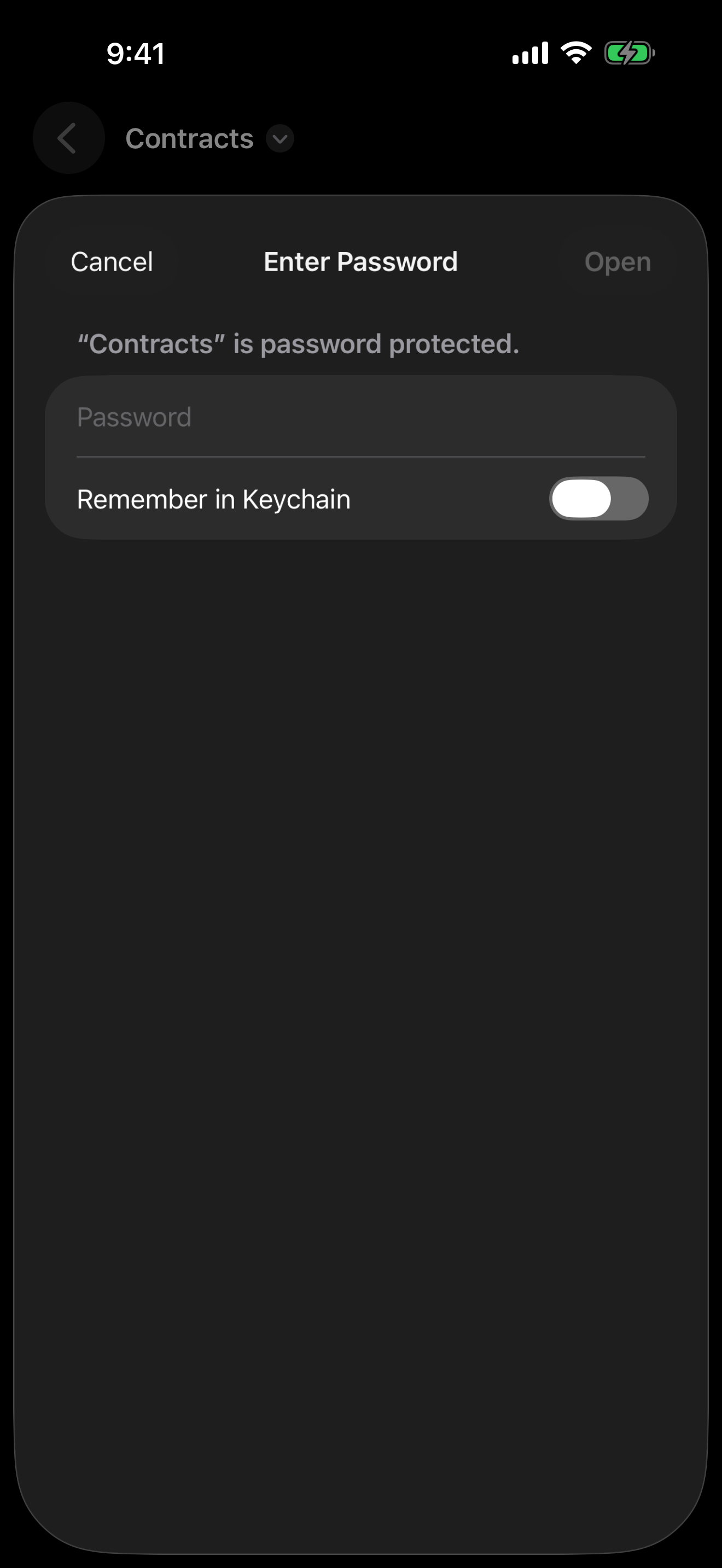
Kernir uses a password prompt to open supported 7z AES-256 archives on iPhone and iPad too. With encrypted headers, the password is needed before it can list the files. The App Store release is being prepared; the mobile guide shows browsing, extraction and editing.
To try a small file with known contents, use the sample archive library. Substitute the downloaded sample's filename in the commands above.
Kernir.dmg, signed and notarized. Requires macOS 14 or later.
Related guides
Built-in-tool examples are based on the project’s recorded macOS 26.2 checks. App steps were checked against source code. Updated .
Current encryption support was rechecked against source code on . Mobile screenshots, where shown, were supplied by the project owner.
