
Put a password on a ZIP
On Mac, Terminal's zip -er creates a password-protected ZIP and asks you to enter the password. It uses legacy ZipCrypto. For an AES-encrypted ZIP, use an application that offers AES, such as Kernir, and check that the recipient has a compatible reader.
This guide covers creating a protected archive. If someone has already sent you one, use the guide to opening a password-protected ZIP.
Create one with Terminal
Suppose the folder you want to share is called Project and is in Downloads. Run:
cd ~/Downloads
zip -er "Project-private.zip" "Project"
Choose an output filename that does not already exist. -e asks for encryption; -r includes the folder's contents recursively. The command prompts for the password twice. What you type is not displayed. Do not append your private password to the command.
Check the output before sharing it. If a ZIP with that name already exists, zip updates that archive; it is not a dependable way to rebuild every old entry with a new password. Starting with a new filename avoids mixing previously stored entries with the ones you just added.
This command leaves the source folder in place. Password-protecting a ZIP does not encrypt the original files, their other copies or backups. Finder's ordinary Compress action creates a ZIP without this password prompt.
Choose the encryption scheme
“Password-protected ZIP” does not describe one encryption scheme. The built-in zip -e route uses ZipCrypto, which is a legacy compatibility option and should not be chosen for sensitive material. AES ZIP is a different scheme and requires a reader that supports it.
For a practical compatibility check, send a small non-private test file first. The sample library includes ZipCrypto and AES-256 ZIPs with the public password kernir. If the recipient can open one but not the other, agree on a supported tool before sending the real archive.
The Info-ZIP ZIP documentation and your local man zip describe the command's options. Do not assume that a password prompt by itself tells you which scheme was used.
Create an AES ZIP in Kernir
The Mac download is coming soon. You can view the source and build instructions on GitHub. These steps describe the current app workflow.
- Choose File › New (⌘N), then add the files you want to include.
- Save the new archive and choose ZIP in the Format control.
- Turn on Encrypt with password.
- Enter the password in Password and Verify, and select AES-256 in Encryption.
- Choose a new filename and save. Reopen the result and extract a test file before sending it.
For an existing archive, File › Save As… (⇧⌘S) creates a separate output copy. Inspect its Format and Encryption settings rather than relying on the source filename. Kernir also offers AES-128 and the legacy ZipCrypto option for ZIP; TAR output has no password encryption.
Check the finished ZIP
For the ZipCrypto archive made by the Terminal command, run:
unzip -t "Project-private.zip"
The reader asks for the password. Confirm that every expected file passes the test. This checks whether that reader can decrypt and read the entries; it does not test how difficult the password would be to guess.
An AES ZIP may be unsupported by the bundled unzip. In that case, test it in Kernir or the recipient's AES-capable application. A method-support error is different from a wrong password. To check the result fully, extract into a new folder and open the documents you intended to send.
Are filenames protected too?
The ZIP schemes discussed here protect file contents, but their stored names can still be listed without the password. Avoid putting confidential information in those filenames if the names themselves matter.
For encrypted names, consider a reader-compatible 7z with header encryption. Current Kernir writes AES-256 7z archives with encrypted headers, so the password is needed to list them. That changes the output format; renaming a .zip file does not perform the conversion. See ZIP versus 7z for the compatibility tradeoff.
Open it on iPhone or iPad
The mobile Kernir interface asks for the archive's password before opening protected contents. The screenshot below illustrates opening a protected archive, rather than the Mac save panel used to create it.
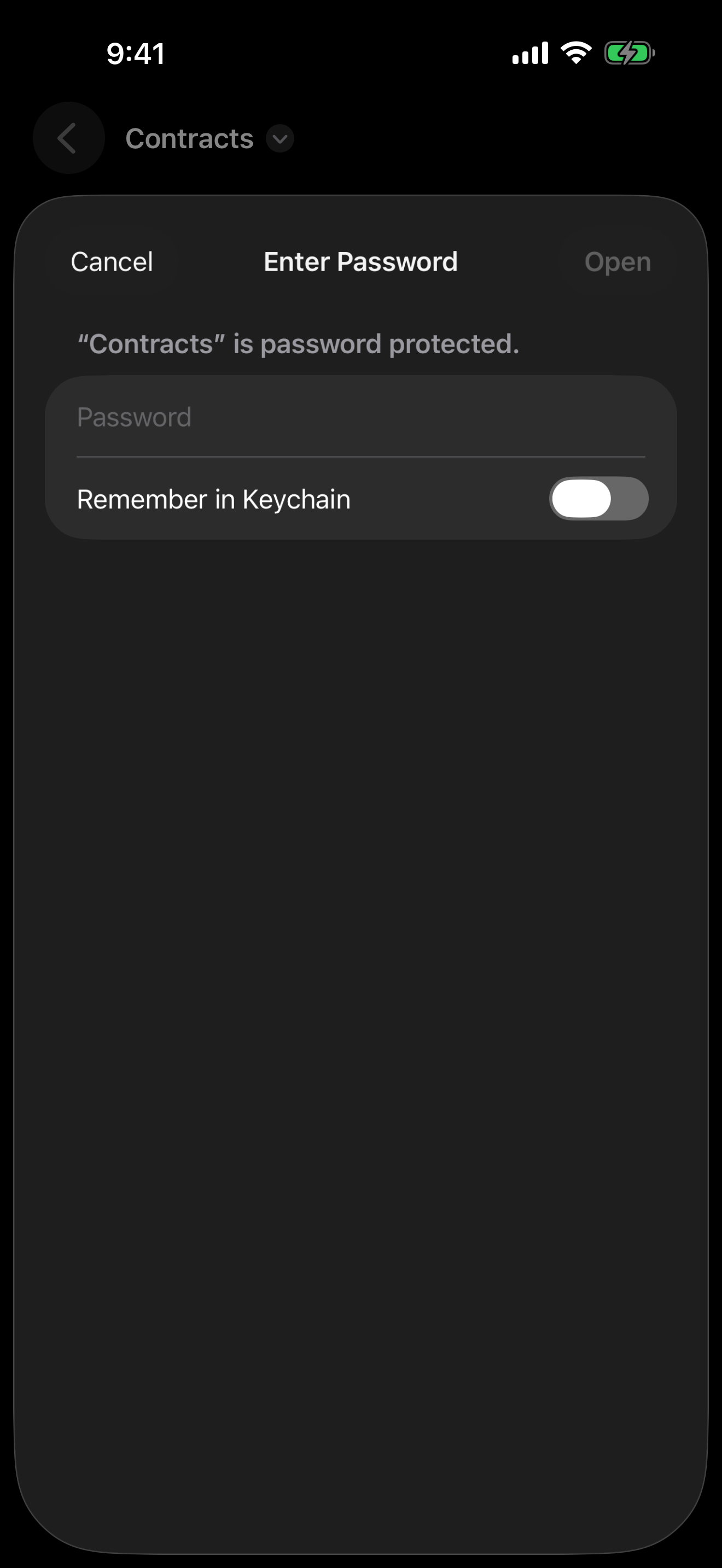
The App Store release is being prepared. See the illustrated iPhone and iPad guide for the current browsing, extraction and editing workflow. Share the password separately from the archive when that fits your communication workflow.
Kernir.dmg, signed and notarized. Requires macOS 14 or later.
Related guides
The interactive zip and unzip commands were checked with Info-ZIP on Linux. Mac save controls were checked against current Kernir source code. The illustration shows the iPhone password prompt, not a newly tested Mac session. Updated .
