
Open ZIP files on Mac
Double-click a ZIP in Finder to extract it with your Mac's default archive application. To check what is inside before unpacking, use Terminal's unzip -l or open it in Kernir. Kernir can browse, extract, create and edit ZIP archives.
Open it in Finder
Find the downloaded .zip file and double-click it. With the standard Archive Utility association, macOS expands it beside the archive. Open the resulting file or folder to find your documents. Apple's ZIP guide for Mac describes this built-in workflow.
If double-clicking launches another app, the file association has changed; that alone does not mean the ZIP is broken. You can use Open With to choose an archive application. Leave the original ZIP in place until you have checked the extracted files.
A ZIP can contain a single file, a folder or several top-level items. Do not assume that everything will be inside one neatly named folder. Choose a separate destination when you want to keep the results together.
List and extract with Terminal
For a file named Project.zip in Downloads, open Terminal and run:
cd ~/Downloads
unzip -l "Project.zip"
mkdir "ZIP output"
unzip -n "Project.zip" -d "ZIP output"
Replace the archive name with yours. Create a fresh destination; if ZIP output already exists, use another name. The listing shows paths before extraction. -d chooses the destination, while -n keeps existing files rather than overwriting them.
Check the output folder after the command completes. If you rerun it with -n, previously extracted files are skipped; they are not refreshed with a newer version. To extract just one entry, use the single-file extraction guide, including its full path inside the ZIP.
Browse it in Kernir
The Mac download is coming soon. You can view the source and build instructions on GitHub. These steps describe the current app workflow.
- Choose File › Open… (⌘O) and select the ZIP.
- Browse the folders or search for the filename you need.
- Select the entries and choose File › Extract… (⌘E), then pick a destination. You can also drag a file into Finder.
Opening the archive lets you inspect it before choosing what to extract. If you need to change its contents, Kernir also writes ZIP: see adding or removing files. To make a new ZIP using built-in tools, select the files in Finder, Control-click and choose Compress.
When a ZIP will not open
A .zip extension does not guarantee that every reader supports the compression or encryption inside. If the ZIP asks for a password, follow the password-protected ZIP guide. Kernir supports ZipCrypto and WinZip-compatible AES ZIPs; PKWARE Strong Encryption is not supported.
If a download is incomplete, download it again before changing its extension or trying to repair it. Follow the ZIP troubleshooting checks for “Unable to expand” messages, destination problems and Terminal diagnostics. A successful extraction and opening the extracted document are separate checks: an archive tool cannot make a Windows-only program run on macOS or repair a damaged document automatically.
For an unencrypted ZIP, unzip -t "Project.zip" checks whether its stored entries can be read. An error needs investigation; the test is not a guarantee that the files came from a trustworthy sender.
On iPhone and iPad
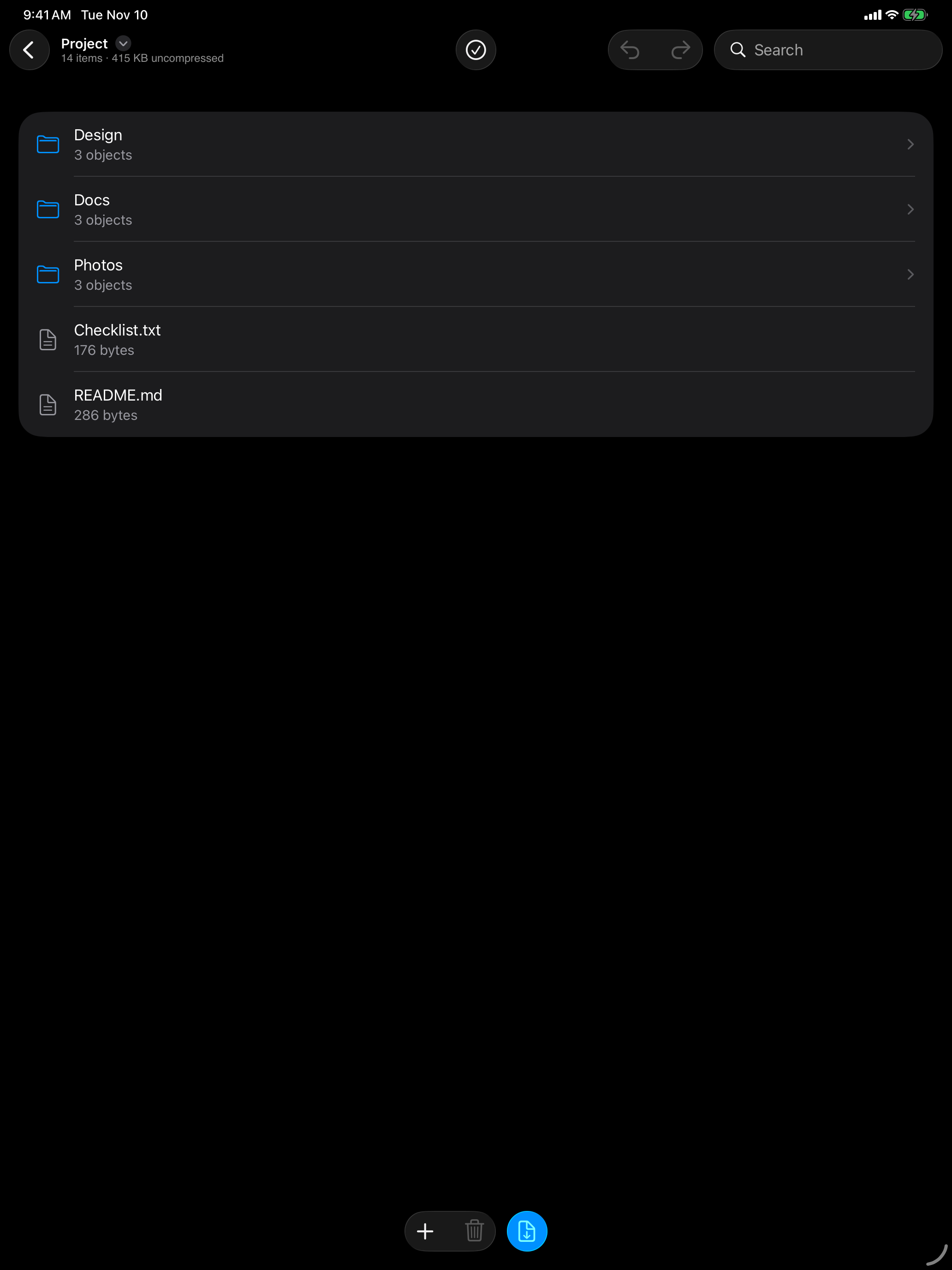
Kernir also lets you browse a ZIP on iPhone and iPad before extracting it. The iPad screenshot below shows the folder and file list. The App Store release is being prepared; see the illustrated mobile guide for the current workflow.
To try a small file with known contents, use the sample archive library. Substitute the downloaded sample's filename in the commands above.
Kernir.dmg, signed and notarized. Requires macOS 14 or later.
Related guides
App steps were checked against Kernir source code. Command examples were checked with test archives on Linux using libarchive and the named utilities, not in a new macOS session. Updated .
